
The short version
- Solid state drives have no moving parts, so they are faster and handle bumps much better than hard drives.
- An NVMe drive suits your daily PC, while hard drives still make sense for large backups and archives.
- Any drive can fail, so keep automatic backups with more than one version and a copy stored off-site.
Storage has moved from spinning disks to memory chips with no moving parts, and you feel the difference every time you turn on a PC. Here is how the main types compare and where each one belongs.
How each type works
Hard disk drive (HDD)
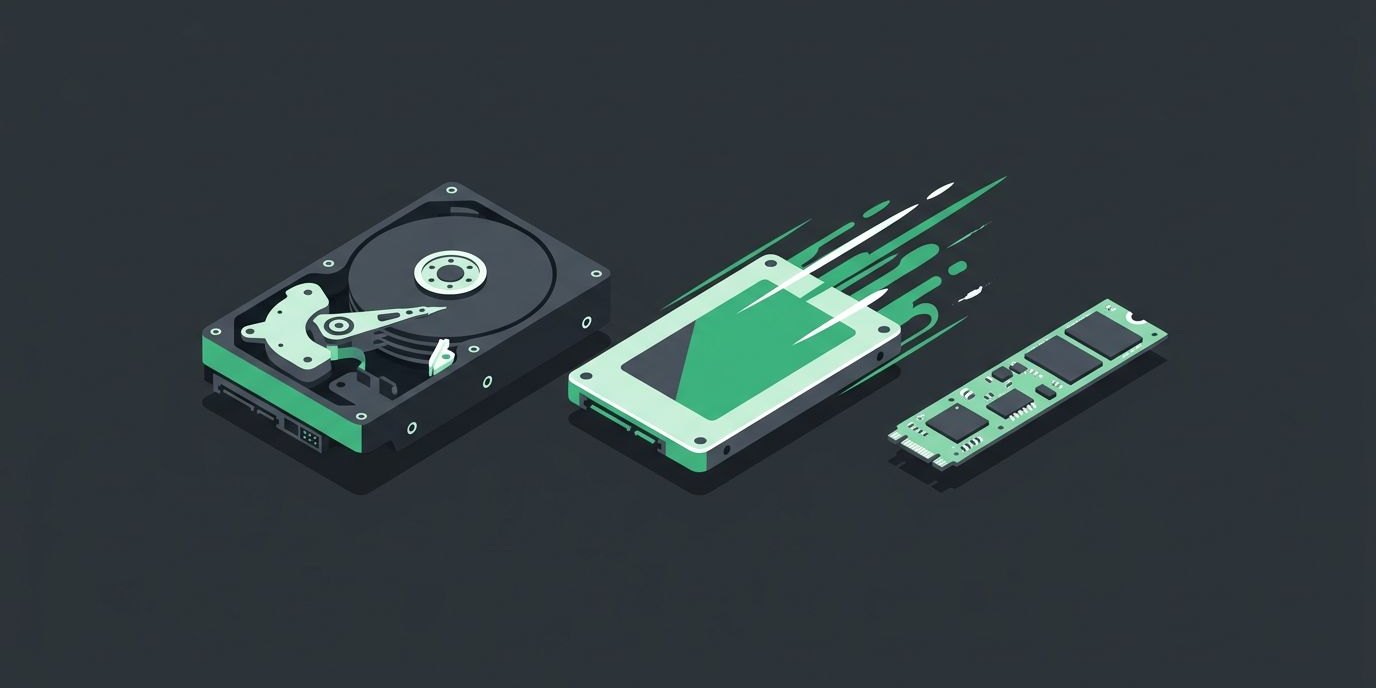
Stores data on spinning platters, read by an arm that moves across them, a bit like a record player. Those moving parts make it slower and more sensitive to bumps and drops.
SATA SSD
Stores data on flash memory chips with no moving parts. It uses the same connection as a hard drive, so it is an easy swap in many older computers.
NVMe SSD
Uses the same kind of flash memory but connects through the computer’s faster PCI Express lanes instead of the older SATA connection. Most are small “M.2” sticks that plug straight into the motherboard.
USB flash drives and SD cards
Also flash memory, but built for portability and low cost rather than constant daily use. Speed and quality vary widely from one product to the next.
Speed
This is where SSDs win clearly. A hard drive has to physically move to find data, so starting Windows, opening programs, and searching files all take longer. Any SSD removes that wait.
NVMe is faster still, which you notice most with large files like photos, video, and big databases. For everyday office work, the jump from a hard drive to any SSD is the change you feel most.
Durability
With no moving parts, SSDs handle bumps, drops, and vibration far better than hard drives. That makes them the right choice for laptops. They also run silently and give off less heat.
Lifespan and reliability
Hard drives wear out mechanically. SSDs wear differently: each memory cell can only be rewritten a limited number of times. Drive makers publish an endurance rating, often listed as TBW (terabytes written). It is worth checking for heavy workloads like video editing or databases.
As for failures, Backblaze, a cloud backup company that tracks the drives in its data centers, found that once it compared drives of similar age and use, SSDs and hard drives failed at similar rates. SSDs are faster and tougher, but they are not immune to failure.
Comparison at a glance
| Type | Speed | Handles bumps | Best use | Not ideal for |
|---|---|---|---|---|
| Hard drive (HDD) | Slowest | Poor, has moving parts | Backup drives, archives, bulk storage | Laptops, or the main drive in a daily PC |
| SATA SSD | Fast | Good | Upgrading older PCs and laptops | Very large archives where space matters most |
| NVMe SSD | Fastest | Good | Main drive in the PC you use every day | Older PCs without an M.2 slot (check first) |
| USB flash drive or SD card | Varies, often slow | Good, but easy to lose | Carrying and sharing files, cameras | Backups, or your only copy of anything |
Where each one belongs
- Your daily PC or laptop: an NVMe SSD. Many new business computers already come with one.
- An older PC worth keeping: a SATA SSD can make it feel much faster. If it can’t run Windows 11, replacing it is usually the better move.
- Backups and archives: hard drives still make sense when you need a lot of space, such as an external backup drive or a network storage box.
- Carrying files: USB drives and SD cards are fine for moving files from place to place. They are easy to lose and not dependable as a backup, so encrypt any that hold business data.
Any drive can fail, so back up
Faster storage does not protect your data. Drives fail, laptops get stolen, files get deleted by accident, and ransomware can lock everything at once. The fix is a backup that runs automatically, keeps more than one version, and stores a copy away from the office.
A common guideline is the 3-2-1 rule: three copies of your data, on two different types of storage, with one copy off-site. Our data backup page explains how we set that up, and our managed IT service can keep an eye on it for you with a managed backup plan.
Questions about your setup? Call Complete I.T. at (813) 444-4355 or request a free assessment, and we’ll call you to talk it through.