
The short version
- Let Windows install updates and restart your computer at least once a week instead of only putting it to sleep.
- Put every work computer on a surge protector or battery backup, and keep its vents cool and free of dust.
- Back up files automatically to somewhere other than the PC, since syncing to a cloud folder is not a true backup.
Back in 2016 we shared a few quick tips to keep your computer out of the repair shop. The advice still holds, but Windows, drives, and backups have changed, so here is the 2026 version.
Shut down and restart the right way
Holding the power button to force a computer off is still a bad habit. It can interrupt updates and damage files that were open. Use Start, then Power, then Restart or Shut down.
Restarting matters more than it used to. Many people only put their PC to sleep, so it can run for weeks without a fresh start. A restart clears out stuck programs and finishes installing updates. Once a week is a good habit.
Let updates install
Updates close security holes and often fix the bugs that make a computer slow or unstable. Windows 11 downloads most of them on its own. The part people skip is the restart.
You can set active hours so Windows won’t restart while you’re working, or pick a restart time yourself under Settings, then Windows Update. Microsoft explains both in its Windows Update FAQ.
If your office still has Windows 10 computers, Microsoft ended support for Windows 10 on October 14, 2025. Unless they’re enrolled in Microsoft’s paid Extended Security Updates program, those machines no longer get security fixes, so plan to upgrade or replace them.
Protect against power problems
Storms, brownouts, and power flickers are hard on electronics. A surge can ruin a power supply or a circuit board, and a sudden outage can corrupt a file in the middle of saving.
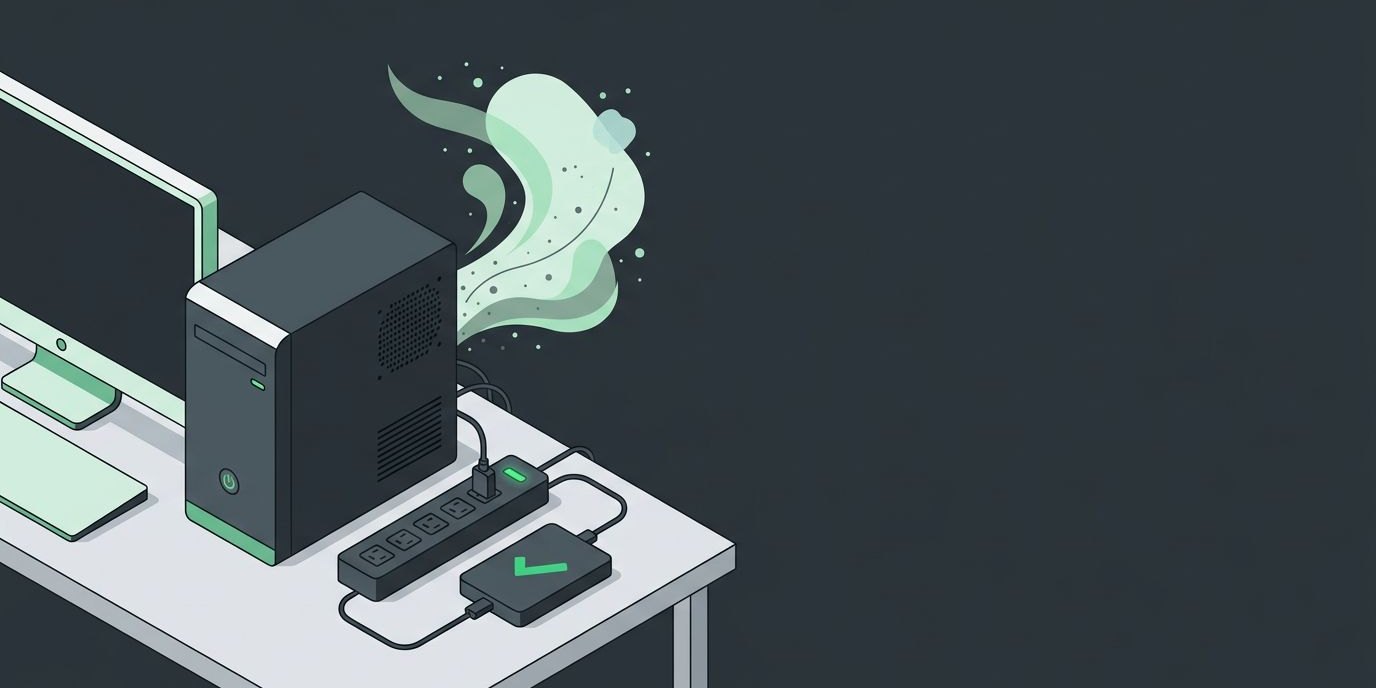
- Surge protector: the minimum for any computer, printer, or network equipment. Replace it after a major surge or if its “protected” light goes out.
- Battery backup (UPS): short for uninterruptible power supply. It keeps the PC running long enough to save your work and shut down properly. Worth it for servers, network gear, and anyone who can’t afford to lose an afternoon of work.
Keep it cool and clean
Heat shortens the life of every part in a computer. Dust builds up in fans and vents, the PC runs hotter, and the fans get louder trying to keep up.
- Leave a few inches of open space around the vents. Don’t close a tower inside a cabinet.
- Use laptops on a hard, flat surface, not a bed or a couch cushion.
- Have the inside cleaned out about once a year, more often in a dusty shop or warehouse.
Back up your files
A backup won’t make your PC last longer, but it decides whether a dead drive is an inconvenience or a disaster. Every drive eventually fails, including newer solid state drives.
A good backup runs on its own, keeps more than one version of your files, and stores a copy away from the computer. Cloud folders like OneDrive or Google Drive help, but syncing is not the same as a backup. If a file is deleted or scrambled by ransomware, that change can sync too. Our data backup page explains the options.
Be careful what you download
Many slow or broken PCs we see started with a “free” download. Fake driver updaters, browser add-ons, and “PC cleaner” programs often bring adware or worse along with them.
- Download software only from the maker’s own website or the Microsoft Store.
- Ignore pop-ups that say your computer is infected and give you a number to call. Real security warnings don’t do that.
- Keep Microsoft Defender or your company’s security software turned on.
For more on keeping threats out, see our computer security page.
Consider an SSD for older PCs
If an older computer still runs on a spinning hard drive, swapping it for a solid state drive (SSD) is often the most noticeable upgrade you can make. Startup and programs load much faster, and there are no moving parts to wear out. Check first whether the PC is worth it, though. A machine that can’t run Windows 11 is usually better replaced.
Warning signs it’s time to call a pro
- Clicking, grinding, or buzzing sounds from inside the computer
- Frequent freezes, blue screens, or random restarts
- Slowness that doesn’t go away after a restart
- Fans running loud all the time, or a case that feels hot
- Files that won’t open, or folders that seem to vanish
- New toolbars, pop-ups, or a home page you didn’t choose
- A swollen laptop battery or a trackpad that is pushed up. Stop using it and unplug it.
Some of these, especially strange noises and missing files, can mean a drive is failing. Back up what you can first, then get help before trying fixes that could make it worse.
If you’d rather not think about updates, backups, and security at all, our managed IT service takes care of updates and security for you, and backups on a managed backup plan.
Questions about your setup? Call Complete I.T. at (813) 444-4355 or request a free assessment, and we’ll call you to talk it through.